If you need a pixel-accurate picture of a web page instead of a document, converting HTML to PNG is often the right move. PNG keeps edges crisp, supports transparency when your capture stack allows it, and works everywhere from slide decks to support tickets. This guide explains what actually happens when you turn HTML into an image, how to pick PNG versus JPEG or WebP, and how to get repeatable results whether you use an online converter, a browser extension, or a scripted headless browser. You will also see common failure points (logins, lazy-loaded media, odd fonts) and where PDF still fits when you need multipage, printable output.
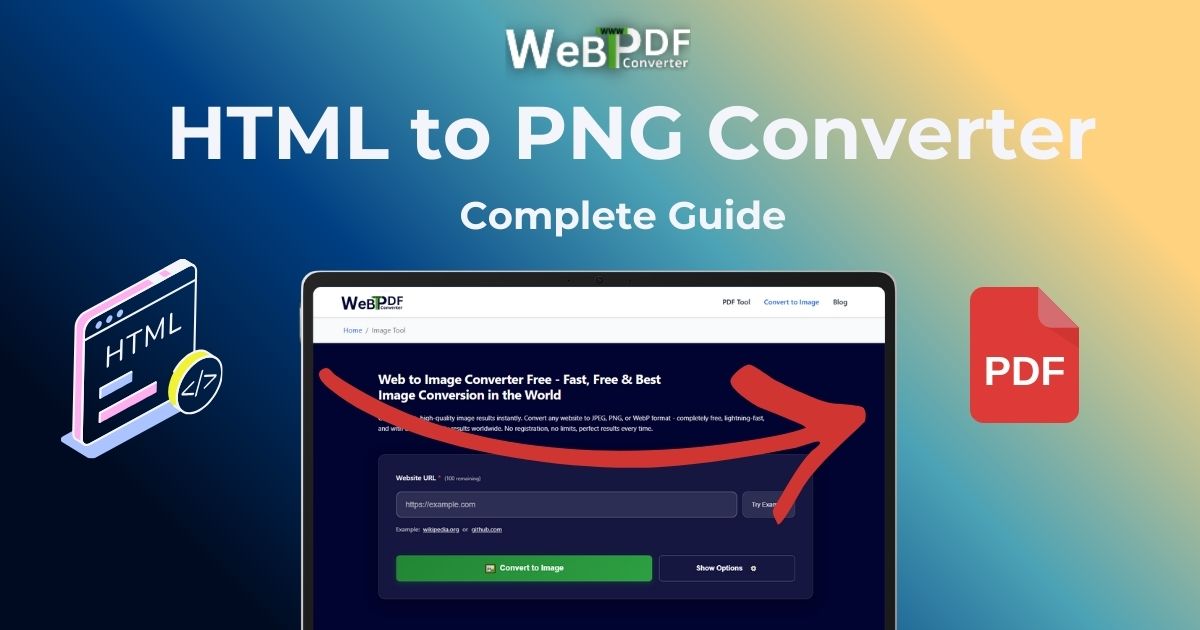
For a fast, no-install workflow, you can use our Web to Image converter with PNG selected, or the dedicated HTML to PNG landing experience. When you need a file for printing or formal sharing, pair those habits with the URL to PDF converter so you are not forcing one format to do another format’s job.
What “HTML to PNG” really means
HTML to PNG conversion is not magic text transformation. A renderer loads your markup, applies CSS, runs JavaScript where needed, fetches images and fonts, and lays out the page much like a normal browser. Only after that paint step does the tool sample the result into a raster image. That is why the same HTML can look different across tools: viewport size, font availability, network timing, and how long the engine waits for dynamic content all change the picture you get.
People say “HTML to PNG” when they mean both live URLs and locally saved markup. Most consumer tools start from a URL because it is the simplest way to guarantee stylesheets and assets resolve. Raw HTML paste workflows exist but often need publicly reachable asset URLs or inline styles to look correct.
PNG, JPEG, or WebP: quick decision rules
Choosing a file type is part of getting a useful html to image result, not an afterthought.
- PNG: Prefer PNG when text must stay sharp, UI chrome matters, or you might need transparency. File size is larger than lossy options, which is fair trade for clarity on screenshots and mockups.
- JPEG: Use JPEG when the page is photo-heavy and you care more about smaller files than perfect edges. Text and thin lines can soften; avoid JPEG for small-type UI captures unless you accept that compromise.
- WebP: WebP is a strong modern default for web delivery when recipients support it. Many converters, including the options behind our image tool, let you export WebP alongside PNG and JPEG so you can A/B size and quality quickly.
Three solid ways to convert HTML to PNG
Most teams settle on one primary path and keep the others as backups. Here is how they differ in day-to-day use.
1. Online HTML to PNG converters
Online converters shine when you want zero setup, cross-device access, and consistent server-side rendering. You paste a URL, set quality and viewport, then download. Good services expose page format presets (mobile, tablet, desktop, print-oriented sizes) so your thumbnail or QA capture matches how the page is meant to be viewed.
- Strengths: No install, works on locked-down machines, often handles long pages better than a casual print-to-file workflow.
- Watchouts: Pages behind authentication need supported login flows; geo-blocked or bot-blocked sites may fail; very heavy pages need patience or lower resolution settings.
2. Browser extensions
Extensions are ideal when you are already on the tab and want one-click capture of the visible area or a stitched full-page image. They ride inside your real browser profile, which sometimes helps with cookies and sessions, but quality and stitching logic vary by vendor.
- Strengths: Speed for spontaneous captures; familiar environment for logged-in pages if the extension shares your session.
- Watchouts: Fixed-chrome overlays, sticky headers, and infinite scroll can produce messy full-page composites unless you tweak settings or crop.
3. Command-line tools (Puppeteer, Playwright, similar)
For automation, CI artifacts, or generating hundreds of previews, headless browsers are the flexible option. You script navigation, wait for selectors, hide cookie banners if needed, then call a screenshot API. The same stack often powers both html to png and URL to PDF pipelines, so teams can standardize on one runtime.
- Strengths: Repeatable, testable, easy to integrate with backends and queues.
- Watchouts: You own maintenance: browser updates, font packages on servers, and sensible timeouts for single-page apps.
Step-by-step: URL to PNG with an online converter
These steps map to most reputable online tools and to the flow behind HTML to PNG style experiences.
- Copy a stable URL: Use the canonical page you want frozen, not a transient share link that expires.
- Pick viewport or paper size: Match mobile presets for store listings, desktop width for marketing reviews, or a print ratio if the layout is meant to read like a document.
- Set image quality: High for design signoff, medium for internal thumbnails, low only when bandwidth or storage dominates.
- Decide full page versus viewport: Full page captures long articles and dashboards; viewport captures hero sections and above-the-fold marketing shots.
- Run the conversion: Let the tool finish rendering; interrupting early gives half-loaded carousels and placeholder gray boxes.
- Download and spot-check: Zoom to 100 percent and verify fonts, images, and dark-mode toggles if applicable.
If your goal is specifically a continuous vertical image of an entire scroll, also read How to Take Full Page Screenshots: Ultimate Guide for framing and tooling nuances that overlap with PNG exports.
Best practices that prevent ugly surprises
- Wait for content: Lazy-loaded images and client-side rendering need time. If your converter offers a delay or “wait for network idle,” use it on SPAs and media galleries.
- Match fonts: If a headline uses a webfont, confirm the renderer can fetch it. Missing font fallbacks change line breaks and spacing.
- Trim distractions: Some platforms let you exclude elements by selector for cleaner marketing shots. That is safer than post-processing if you repeat the same crop often.
- Stay consistent: For before-and-after comparisons, lock device width, quality, and zoom. Changing any one variable makes visual diffs misleading.
- Respect privacy: Do not submit authenticated HR or customer dashboards to tools that do not explicitly support secure login flows.
Common mistakes people make with HTML to PNG
- Using PNG for everything: A photo gallery screenshot may be megabytes as PNG but acceptable as WebP or JPEG.
- Ignoring color profiles: Designers sometimes compare captures across tools and blame “wrong colors” when profiles and gamma differ slightly.
- Expecting PDF behavior from a PNG: A single PNG is one flat image. Searchable text, multiple pages, and precise print margins belong in PDF workflows; see HTML to PDF online when that is the goal.
- Capturing too early: Cookie banners and modals dominate the frame if you do not dismiss or hide them first.
Real-world uses that benefit from HTML to PNG
- Engineering and QA: Attach consistent visuals to bug reports instead of subjective “it looks off” notes.
- Marketing and SEO: Build Open Graph or social preview images from live landing pages when brand templates allow.
- Sales and proposals: Drop polished site captures into decks without sending fragile live links.
- Design handoff: Freeze HTML prototypes as PNG for stakeholders who do not use your dev environment.
- Archiving snapshots: Store how a page looked on a date; pair with PDF if you also need text selectability.
When to pair PNG captures with PDF
PNG is unbeatable for a single visual truth at a glance. PDF is better for contracts, articles you want to search, or packets that mix many pages. Many teams generate both: PNG for Slack and Jira, PDF for email and archives. Running the same URL through image export and PDF export with aligned width presets keeps the story consistent.
Conclusion
Converting HTML to PNG is really about controlling rendering: viewport, timing, format, and honesty about what should be an image versus a document. Online converters remain the fastest path for most readers; extensions help inside the browser; headless tools scale the process. Pick PNG when clarity and UI fidelity matter, branch to JPEG or WebP when bytes matter, and reach for PDF when the deliverable is meant to read like a file, not a snapshot. With deliberate settings and a few guardrails against lazy content and auth walls, you can produce captures that look the same tomorrow as they do today.