Best HTML to PDF Converter Online (2026)
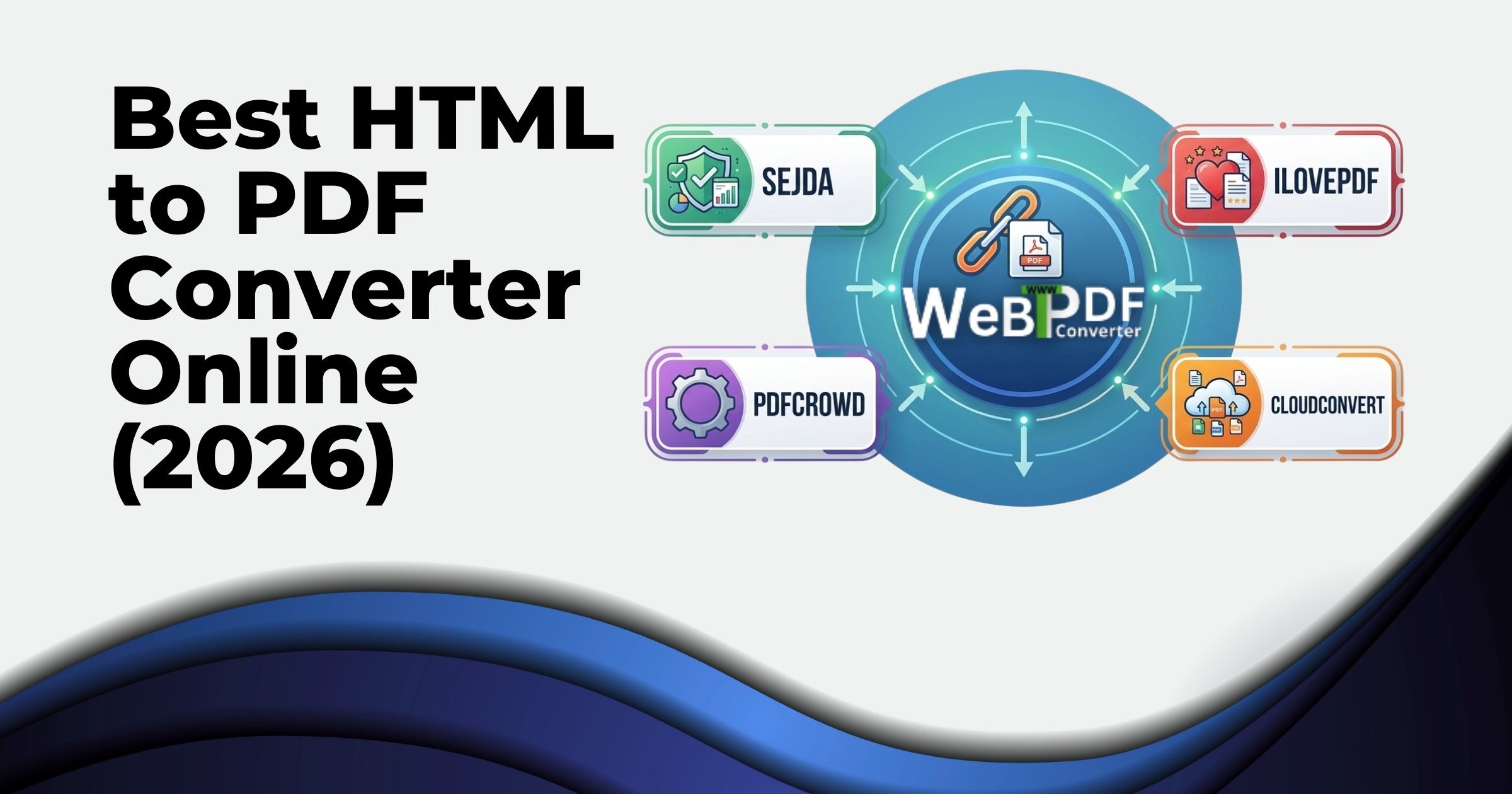
Looking for a reliable way to turn web pages or pasted HTML into polished PDFs without installing software? An online HTML to PDF converter is the fastest path: paste a URL, upload a file, or drop in HTML code and get a download-ready PDF in seconds. In 2026, the best tools balance speed, quality, and control over output. Below is a practical comparison of popular options, including webtopdfconverter, and what to expect from each.
Why Use an Online HTML to PDF Converter?
- No installs – Works in the browser on any device.
- Batch and one-off – Convert a single page or prepare multiple URLs.
- Consistent layout – Renders the page as it appears (or with custom viewport size) before exporting to PDF.
Whether you need reports, invoices, articles, or archives, the right converter saves time and keeps formatting intact.
Feature Comparison: Top HTML to PDF Converters (2026)
Here’s how leading tools stack up on features that matter for real use: quality control, watermarks, color overlay, header/footer, removing elements from the screenshot, password-protected URLs, custom size, sharing output, and free tier.
| Feature | webtopdfconverter | sejda | ilovepdf | pdfcrowd | cloudconvert |
|---|---|---|---|---|---|
| Quality control | Yes | No | No | No | No |
| Add watermark | Yes | No | No | No | No |
| Color overlay | Yes | No | No | No | No |
| Header / footer | Yes | No | No | No | Yes |
| Remove element from screenshot | Yes | No | No | No | No |
| Convert password-protected URL | Yes | No | No | No | No |
| Custom size | Yes | No | No | Limited | Limited |
| Share output PDF | Yes | No | No | No | No |
| Free | Yes | Yes | Yes | No | No |
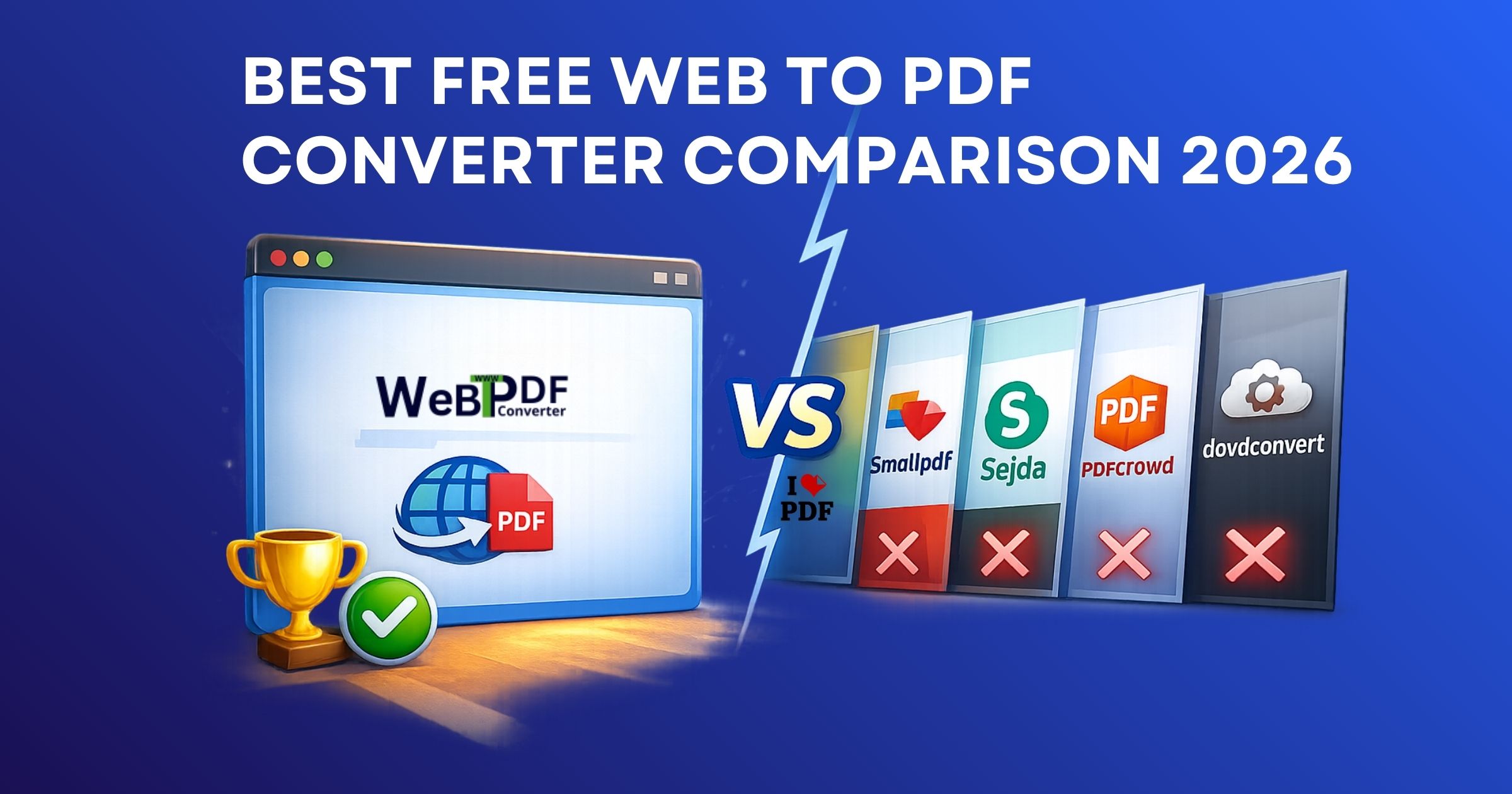
webtopdfconverter is the only option in this lineup that offers the full set: quality settings, watermark, color overlay, header/footer, removing elements before capture, handling password-protected pages, custom dimensions, and sharing, all while staying free to use. Others either skip most of these or limit size and charge for full use.
A Closer Look at Each Tool
webtopdfconverter: HTML to PDF
Built for users who need more than a bare “URL to PDF” button. You can adjust output quality, add a watermark for branding or protection, apply a color overlay, set custom page or viewport size, and strip unwanted elements (e.g. nav bars, ads) from the screenshot before PDF generation. Password-protected URLs are supported, and you can share the resulting PDF. The service is free, which makes it a strong pick for individuals and small teams who want control without a subscription.
sejda
Sejda’s HTML to PDF flow is straightforward and free, but it doesn’t expose quality sliders, watermarks, color overlay, header/footer on the capture, element removal, password-protected URL conversion, custom size, or built-in sharing. Good for quick one-off conversions when you don’t need those extras.
ilovepdf
ilovepdf is known for merging and splitting PDFs; its HTML to PDF is simple and free but lacks quality control, watermark, color overlay, header/footer, element removal, password-protected URL support, custom size, and sharing. Best for basic “convert this page” needs.
pdfcrowd
pdfcrowd targets developers and power users with APIs and customization, but the free tier is limited and custom size is only partially available. It does not offer watermark, color overlay, header/footer in the same way, element removal, password-protected URL conversion, or share output in the comparison above. Pricing applies for full access.
cloudconvert
cloudconvert supports header/footer on output and limited custom size, but not quality tuning, watermark, color overlay, element removal, password-protected URLs, or sharing the PDF from the tool. It’s paid for regular use, so it’s better suited to teams with a budget and integration needs.
How to Choose the Best HTML to PDF Converter for You
- Need branding or protection? Choose a tool with watermark and optional color overlay (e.g. webtopdfconverter).
- Password-protected or login-only pages? Pick one that supports authenticated URLs.
- Clean layout without nav/ads? Use “remove element from screenshot” so the PDF shows only the content you want.
- Specific page dimensions? Prefer converters with full custom size rather than limited presets.
- Share with others? Built-in share for the output PDF saves emailing files manually.
Conclusion
For 2026, webtopdfconverter stands out among free HTML to PDF converters by combining quality options, watermark, color overlay, header/footer, element removal, password-protected URL support, custom size, and share, all without hiding core features behind a paywall. If you only need a quick, free conversion with no extras, sejda and ilovepdf are fine. For APIs and enterprise use, pdfcrowd and cloudconvert remain solid but with different trade-offs on cost and feature set.