You have just turned a webpage into a PDF, merged a few files into one, or captured a URL as an image. The next step is getting that file to someone else without clogging their inbox or forcing them to log in somewhere. Many free online tools stop at "download only," so you end up emailing attachments or uploading to a third-party drive. That works, but it is slower and less flexible than using a built-in share option.
This guide shows you how to create and share PDF with a web to PDF converter and with our other free tools that support sharing. You will see where the share option appears, how to get a shareable link or use your device's share menu, and how to choose the right tool when sharing is part of your workflow. No signup is required for any of the steps below.
Why Use the Share Option Instead of Only Download?
Downloading a file and then attaching it to an email or uploading it elsewhere is fine for one-off sends. When you need to send the same PDF or image to several people, or when the file is large, the share option is often better. You get a direct link you can copy and paste anywhere, and on many devices you also get shortcuts to share straight into apps: email (Gmail, Outlook), messaging (WhatsApp), social (Facebook, Twitter/X, LinkedIn), or productivity tools (OneNote, Phone Link). The recipient gets one link, opens it in the browser, and can view or download without you resending the file.
Our web to PDF converter, merge PDF tool, and URL to image tool (among others) offer a share step after conversion. You still get a normal download; the share option is an extra way to distribute the result quickly.
How to Create and Share a PDF from a Web Page
Creating a PDF from a URL and then sharing it is a common workflow. Here is how to do it with the share option. You need only a browser and the URL of the page; no account or install is required.
Step 1: Convert the page to PDF
Open the web to PDF tool and paste the URL of the page you want. Set quality (Low, Medium, or High) and page format if you care about size or layout. Optional: add a watermark, header or footer, or remove specific elements if you use the advanced options. Start the conversion and wait for the PDF to be ready. For pages that require login, use the "Required login" option and enter your credentials so the converter can access the content.
Step 2: Download or share
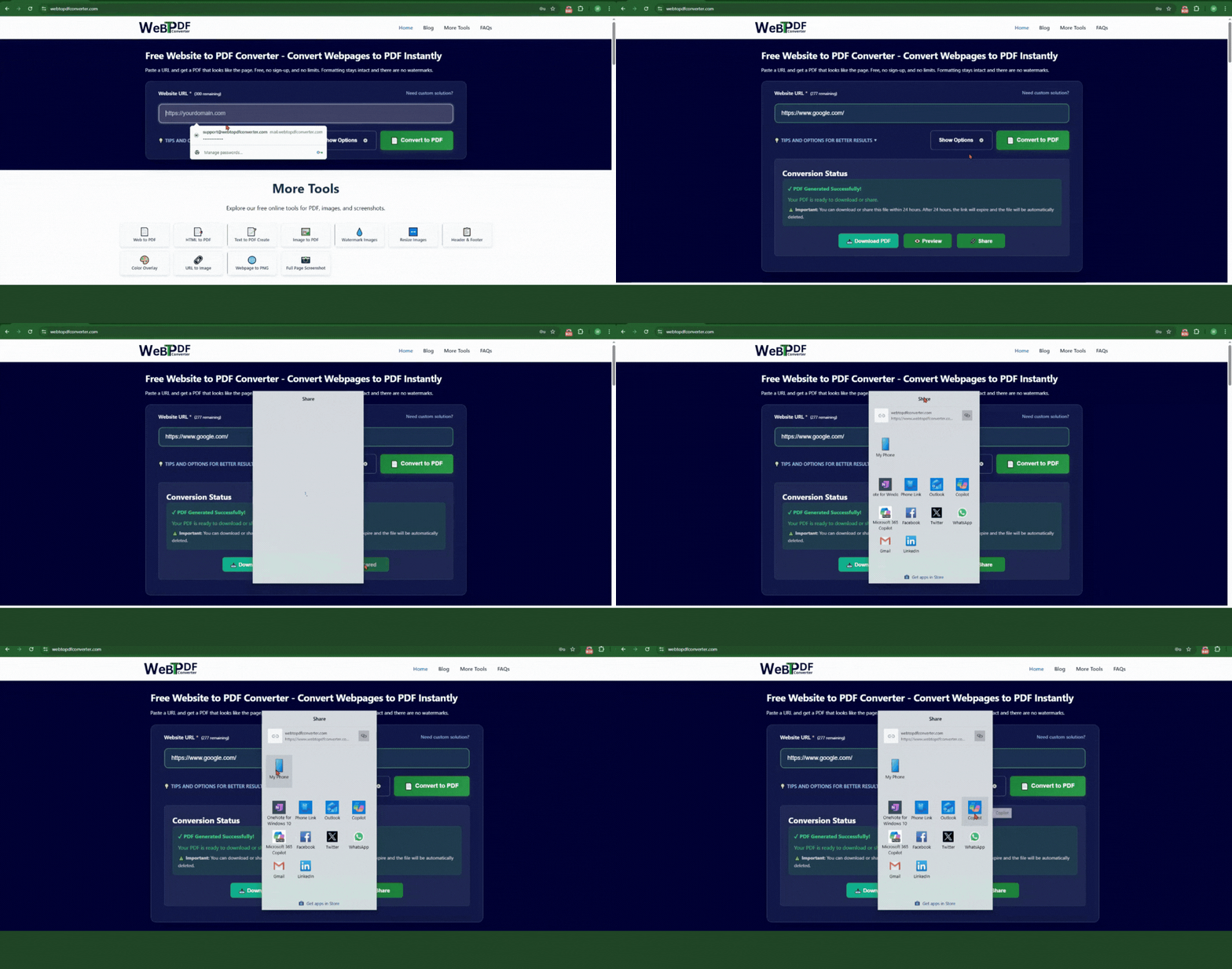
When the conversion finishes, you will see a download button and a share option. Click Share and you get two ways to send the file:
- Direct link: A shareable link to your file is shown in the Share dialog. Use the copy-link button (chain icon) to copy it to your clipboard, then paste it anywhere: email, chat, or a document. Anyone with the link can open and view or download the file until it expires.
- Share with apps: The same Share dialog lets you send the link directly to other apps. Depending on your device and browser, you can share to email (e.g. Gmail, Outlook), messaging (e.g. WhatsApp), social networks (e.g. Facebook, Twitter/X, LinkedIn), or productivity tools (e.g. OneNote, Phone Link). Pick the app you want and the link is sent there without copying and pasting.
You can use the direct link, one of the app shortcuts, or both. You still have the download button if you want to save the file yourself.
Share Options on Other Tools
Besides the main web to PDF converter, several other tools in our suite support sharing the output. Use the one that matches what you are creating.
Merge PDF and share
If you combine multiple PDFs into one with the merge PDF online tool, the result can be downloaded or shared. After merging, use the share button to copy a link or trigger the device share menu. Handy when you are building a single report from several documents and need to send one link to a client or colleague.
URL to image and full page screenshot
When you convert a URL to an image (PNG, JPEG, or WebP) or take a full page screenshot, the output is an image file. Where the share option is available, you get a link to that image. Useful for design feedback, quick mockups, or sending a visual of a webpage without sending a PDF. Try the URL to image tool or the full page screenshot tool, then use the share option after the capture completes.
HTML to PDF, text to PDF, and image to PDF
Tools that produce a single PDF from HTML, text, or images often follow the same pattern: convert first, then choose download or share. Check the result screen for a share or copy-link control. If you are generating a PDF from pasted HTML or from uploaded images, the share option (when present) gives you a link to the generated PDF so you do not have to attach it to an email. Same idea for text-to-PDF or image-to-PDF: once the file is ready, look for the share button next to the download option.
Practical Tips for Sharing PDFs and Images
These habits make sharing smoother and avoid confusion:
- Use the link before it expires. Share links are usually temporary. Send the link soon after conversion and tell the recipient to open or download it promptly.
- Prefer link over attachment for large files. Email systems often limit attachment size. A share link avoids that and keeps your inbox lighter.
- Use the app shortcuts when the Share dialog offers them. You can copy the direct link anytime, but if you see Gmail, Outlook, WhatsApp, Facebook, Twitter, LinkedIn, or other apps in the Share dialog, tapping one sends the link there in one step.
- Do not rely on the link for long-term storage. Treat the share link as a way to deliver the file, not as permanent storage. Keep your own download if you need the file later.
Common Mistakes to Avoid
A few things that can trip people up when they first use the share option:
- Closing the result page before copying the link or sharing. Copy or share as soon as the file is ready if you need the link.
- Assuming every tool on a site has the same UI. Share may appear in a slightly different place (e.g. next to the download button) depending on the tool; look for "Share" or a link icon.
- Expecting the link to work forever. Links are temporary; use them for quick delivery, not as the only copy of the file.
When to Use Which Tool
Pick the tool that matches your input and output:
- Web page to PDF: use the web to PDF converter (or the HTML to PDF tool for HTML markup).
- Several PDFs into one: use merge PDF online, then share the merged file.
- Web page to image: use URL to image or full page screenshot, then share the image link.
For a full list of tools and their features, see the all free tools page.
Summary
You can create and share PDF with a web to PDF converter and with our merge PDF, URL to image, and other free tools by using the share option after conversion. That option gives you a shareable link or opens your device's share menu so you can send the file without attaching it. Use the link soon, prefer links for large files, and keep your own download if you need the file long term. For step-by-step help on any tool, check our FAQs.
Ready to try it? Use the web to PDF converter or merge PDF tool, finish your conversion, and click the share option to get a link or open your device's share menu.