Introduction: How To Convert Protected Pages To PDF Safely
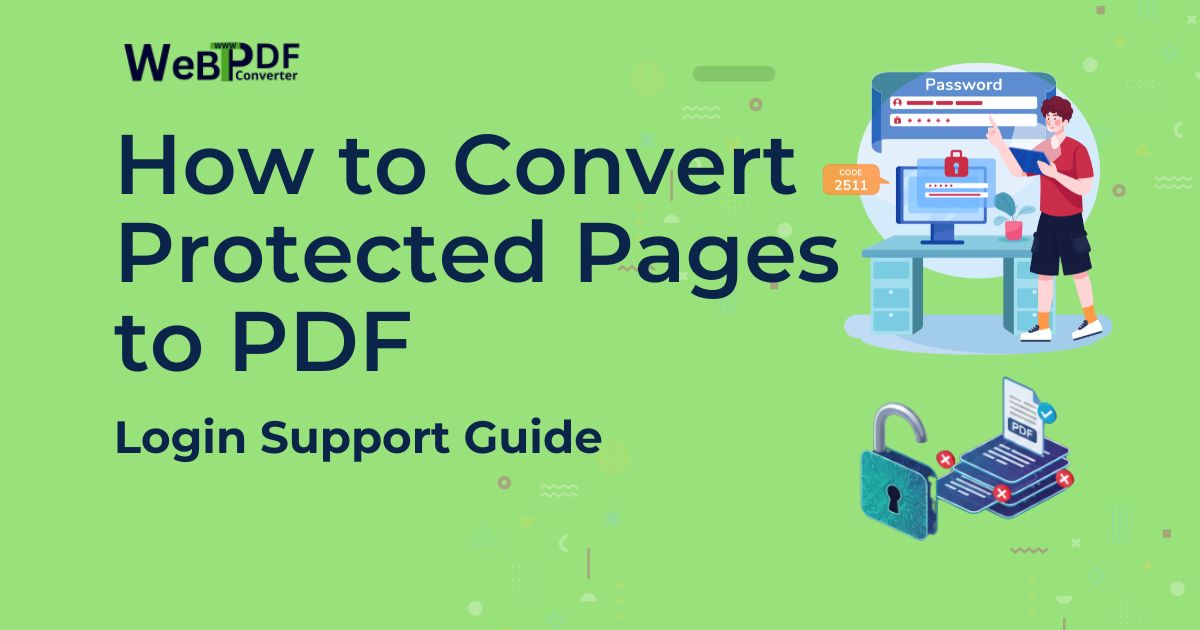
Converting protected pages to PDF can be tricky. Standard converters work well for public sites, but they often fail the moment a login form, membership wall, or private dashboard appears. If you have ever tried to convert a password protected website to PDF and ended up with a blank page or an error, you already know the problem. The good news is that there are safe, practical ways to convert private pages to PDF without compromising your credentials or breaking site rules.
In this guide, you will learn how to convert protected page to PDF using login aware tools, secure workflows, and simple browser methods. We will cover authentication basics, show where most converters fail, and walk through step by step examples for logging in to a website and converting to PDF. Along the way you will see best practices for handling credentials, privacy, and legal considerations so that every authenticated page to PDF conversion stays both useful and responsible.
What Counts As A Protected Or Authenticated Page?
Before you pick a tool, it helps to be clear about what “protected” actually means. A protected page is any page that hides its content behind a login, password, or private session.
- Password protected websites that require an account to view content.
- Private dashboards and admin panels for analytics, CRM, or internal tools.
- Member only content on subscription platforms and e learning portals.
- Corporate intranets and internal documentation systems.
- Social media pages with restricted visibility settings.
- E commerce account areas and order history views.
- Webmail and cloud storage interfaces that require authentication.
Standard “URL to PDF” tools only see what a public visitor sees. If a page requires login, they are locked out. That is why you need either a converter that supports authentication or a method that works inside your existing, logged in browser session.
Why Convert Protected Pages To PDF?
There are many legitimate reasons to convert private or authenticated pages to PDF, as long as you respect security and content rules.
- Documentation and reporting: Capture private dashboards or internal reports for management review, audits, or project records.
- Archiving member content: Keep personal copies of paid articles, courses, or resources you are entitled to access.
- Backing up account information: Save order history, invoices, and subscription details from account pages.
- Training materials: Turn internal tools and workflows into step by step PDFs for new team members.
- Offline access: Read important private content even when you do not have a stable connection.
The key is to convert private page to PDF in a way that does not expose your credentials or violate the terms of service of the site.
Why Standard Converters Fail On Protected Pages
Most “paste URL and convert” services were designed for public sites. They do not know how to log in as you, handle cookies, or wait for authenticated content to appear.
- They cannot submit forms with your username and password.
- They do not have your cookies or session tokens.
- They may not execute the full login flow or two factor prompts.
- They time out while dynamic content loads after authentication.
The result is a PDF of the login page, an error message, or an incomplete snapshot. To convert authenticated page to PDF correctly, your approach needs to run within a logged in session or use a converter that can log in on your behalf in a secure way.
Option 1: Use A Converter That Supports Login
Some advanced converters are designed specifically to convert protected page to PDF and can handle login steps in a controlled environment. They usually offer a secure way to enter credentials and manage sessions.
How login aware converters work
- They provide a secure interface where you enter your username and password.
- They authenticate with the target site using encrypted connections.
- They maintain the authenticated session while they render the page.
- They capture the final, logged in view and export it as a PDF.
- They discard your credentials and session after conversion is complete.
Whether you are converting a password protected website to PDF or a private analytics dashboard, this approach is the most “set and forget” once configured. Always read the converter’s security and privacy documentation and prefer providers that clearly describe how they handle credentials and session data.
Step by step: login to website and convert to PDF
- Open the converter that explicitly supports login or authenticated sessions.
- Enter the URL of the protected page you want to convert.
- Look for a “login” or “authentication” section in the interface.
- Provide your username and password through the secure form.
- Start the authentication process and wait until the converter confirms it is logged in.
- Configure PDF settings such as layout, quality, and page size.
- Begin the conversion and wait for the authenticated content to render fully.
- Download your PDF and quickly review it to confirm all protected content is present.
For general quality, layout, and optimization tips that apply to any convert protected page to PDF workflow, you can follow the guidance in Best Practices for PDF Generation from URLs.
Option 2: Manual Browser Method (Print To PDF)
If you do not have access to a login aware converter, the next best option is to use your own browser session. Because you are already authenticated, the browser can see the private content and print it to PDF.
Steps to convert private page to PDF in your browser
- Log in to the website normally in your browser and navigate to the protected page.
- Make sure all relevant content is visible and fully loaded (charts, tables, lazy loaded sections).
- On Windows or Linux, press Ctrl + P; on macOS, press Cmd + P.
- Change the destination or printer to “Save as PDF” or “Microsoft Print to PDF”.
- Open advanced options and:
- Enable background graphics to keep colors and branding.
- Choose A4 or Letter if you plan to print, or fit to page for on screen PDFs.
- Adjust margins or scale if some columns are cut off.
- Preview every page to confirm the private content appears correctly.
- Click “Save” and store the authenticated page to PDF in a secure location.
This method works entirely on your machine and never shares your login credentials with third party services. The trade offs are less automation and limited control over advanced PDF options. For more advanced control over layout and repeatable settings, many users pair this with a dedicated tool like the URL to PDF Converter for public or semi public pages.
Option 3: Browser Extensions For Authenticated Pages
Some screenshot and PDF extensions run inside your existing browser session and can see the same authenticated content you see. They are useful when built in print options do not capture full pages or when you prefer one click tools.
- Install a trusted full page capture or PDF export extension from your browser’s store.
- Log in to the site and open the private page you want to capture.
- Click the extension icon and choose a full page or PDF capture option.
- Wait while it scrolls and records the entire authenticated view.
- Save the resulting PDF and review it before sharing or storing it.
Extensions still inherit your logged in session, so treat them like any software that can see sensitive data. Review permissions, avoid untrusted publishers, and keep them updated.
Security Best Practices When Converting Protected Pages
Any workflow that touches passwords or private content must start with security. Here are practical rules to follow whenever you convert protected page to PDF.
- Only use converters you trust and that clearly explain how they handle credentials.
- Check that all traffic uses HTTPS and that passwords are never sent in plain text.
- Avoid tools that store or reuse your credentials without your explicit consent.
- Prefer methods that run inside your own browser session when possible.
- Store the resulting PDFs securely, especially if they contain financial, medical, or personal data.
- Delete temporary PDFs from shared or public machines after use.
For a broader perspective on choosing quality, format, and layout settings that also keep file size under control, you can refer to Understanding PDF Conversion Options and Settings.
Troubleshooting Common Protected Page Conversion Issues
Even with the right tools, converting authenticated page to PDF can occasionally fail. Here are frequent problems and how to address them.
Authentication keeps failing
- Double check your username and password by logging in directly in a normal browser tab.
- Confirm that the site is online and not experiencing outages.
- Verify that your converter supports the specific login method (single sign on, two factor, etc.).
- If two factor authentication is enabled, complete the extra step before starting conversion.
- Watch for session timeouts that may log you out before capture finishes.
Content does not appear or is incomplete
- Wait for charts, tables, and async content to fully load before starting conversion.
- Scroll through long dashboards once to trigger lazy loading, then convert.
- Check if the converter has an option to wait longer for JavaScript and network activity.
- Try capturing smaller, focused sections instead of a very large dashboard in one pass.
Session timeout issues
- Start conversion soon after logging in, before the site automatically logs you out.
- If available, increase any “wait time” or “timeout” settings in the converter.
- Convert multiple needed pages in a single session to reduce repeated logins.
Legal, Ethical, And Privacy Considerations
Just because you can convert private page to PDF does not always mean you should share it widely. Think carefully about how you use converted files.
- Only convert protected pages that you are legally and contractually allowed to access.
- Respect site terms of service, licensing, and usage limits.
- Do not redistribute member only or confidential content without clear permission.
- Follow copyright rules and any specific reuse restrictions on the content.
- Consider the privacy of other people whose data may appear in your PDFs.
A simple rule of thumb: treat every authenticated page to PDF file with at least the same care you would give to the live account or system it came from.
Conclusion: A Safe Workflow For Converting Protected Pages To PDF
Converting a password protected website to PDF is more complex than turning a public article into a file, but it does not have to be guesswork. With the right combination of login aware tools, manual browser methods, and careful security practices, you can reliably convert protected page to PDF for dashboards, account views, and internal systems.
Start by deciding whether you should use a secure converter with login support or rely on your own browser’s print to PDF for sensitive content. Apply the best practices in this guide, test with a simple private page first, and always review the final output. If you also work with public URLs, you can pair these techniques with tools like the URL to PDF Converter and the general advice in How to Convert Website to PDF: Complete Guide to build a complete, safe, and flexible PDF workflow for both public and authenticated pages.